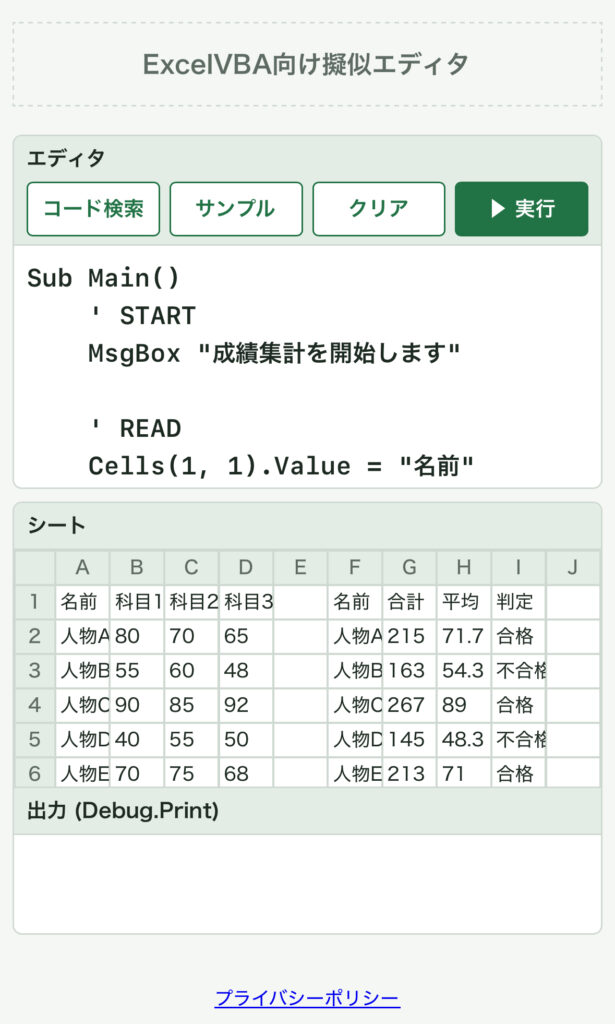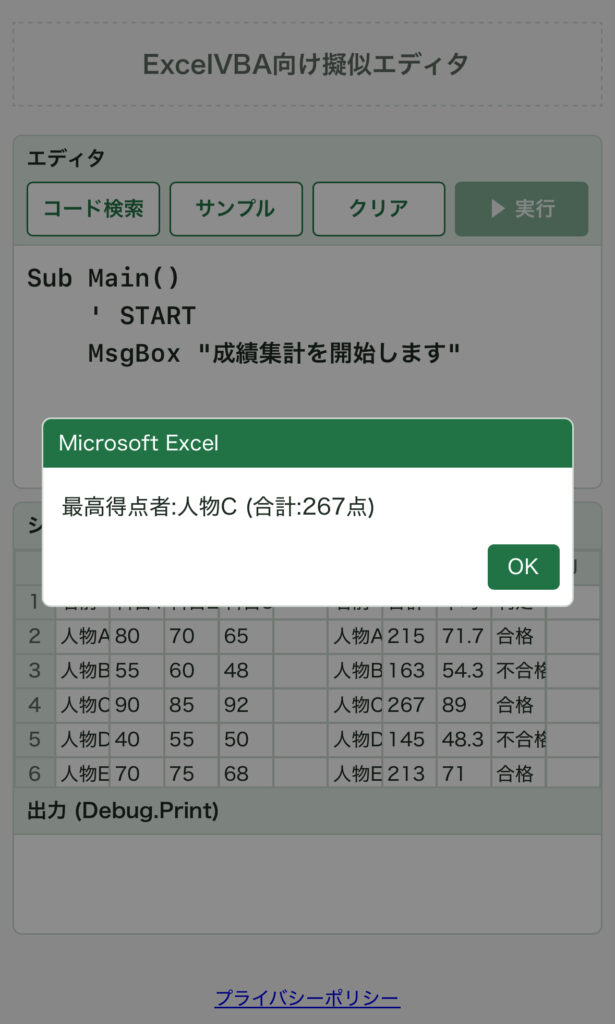

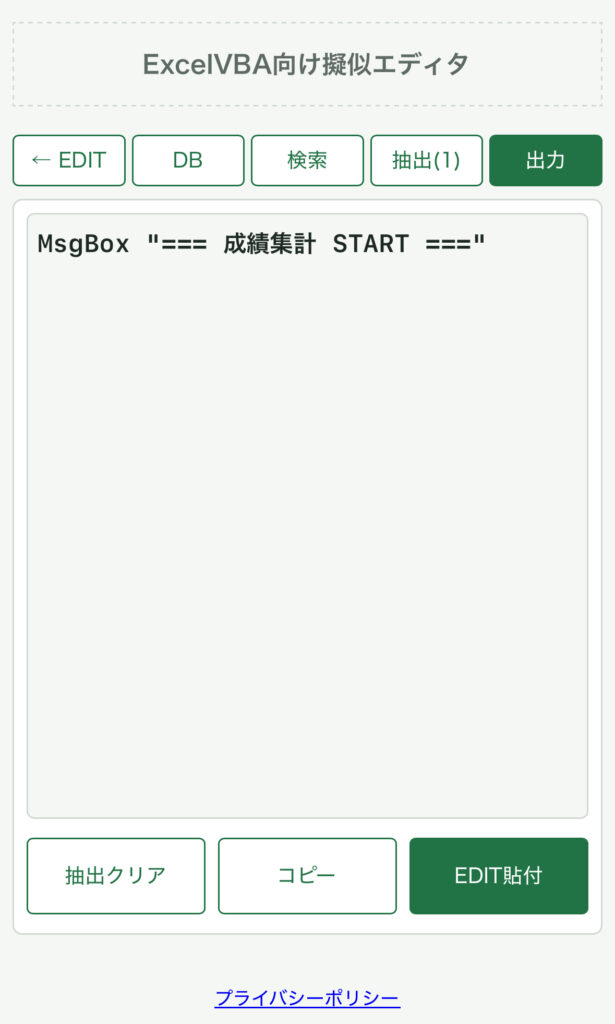
ExcelVBA用のプログラミング学習アプリとして、Web上で編集可能な擬似エディタを制作してみました。制作したアプリの見た目は以下です。(左:擬似エディタ、右:検索アプリ)
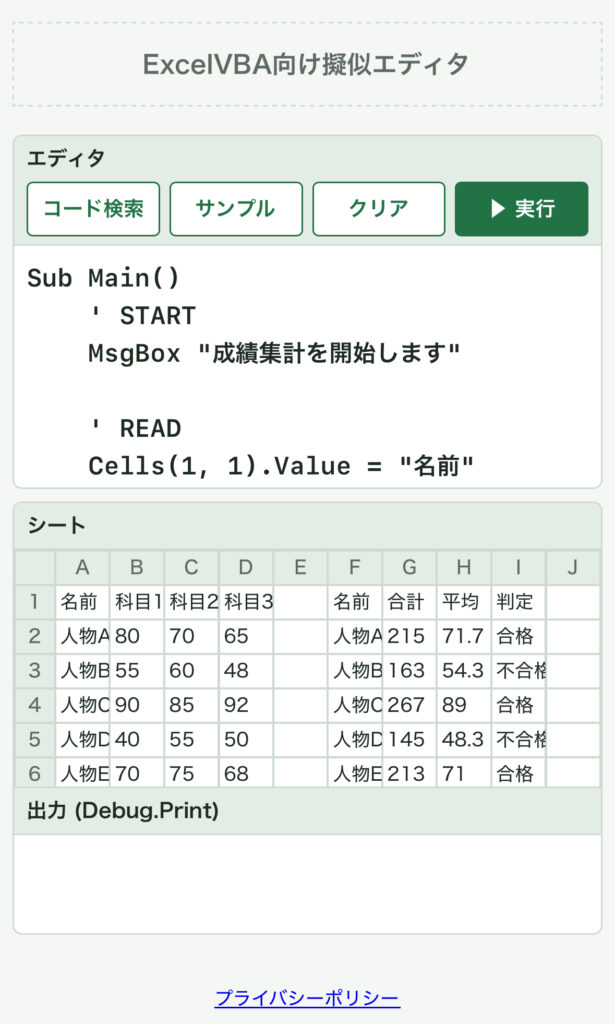
>> 制作したアプリはこちら
このアプリは、スマホのみでコードを編集できます。また、エディタ内にコード検索アプリも合わせて搭載した仕様となります。なお、擬似エディタ故に、再現できるコードは限られていますが、プログラミング初心者の方の登竜門としてご活用いただけますと幸いです。
概要
以降の記事では、5人の成績を集計して「合格・不合格」を判定するサンプルコードを例として、プログラミングの基本的な流れを解説します。この流れを意識すると、プログラミングの基本構成が理解できるようになるかと思います。
ExcelVBAでは、Sub Main()〜End Subの中にコードを書いていきます。今回のコードの要旨は以下です。
- 人物A〜Eの3科目の点数を読み込む
- 3科目の合計と平均を計算する
- 平均が60点以上なら「合格」、未満なら「不合格」と判定する
- 合計点が一番高い最高得点者を探す
- 結果を出力する
START
「 ’ 」を冒頭につけると処理に関係ないコメント文(メモ書き)となります。MsgBoxは、画面にメッセージを表示する命令です。「OK」を押すと次へ進みます。処理が始まったことが分かるので、動作確認のときに便利です。
    ' START
    MsgBox "成績集計を開始します"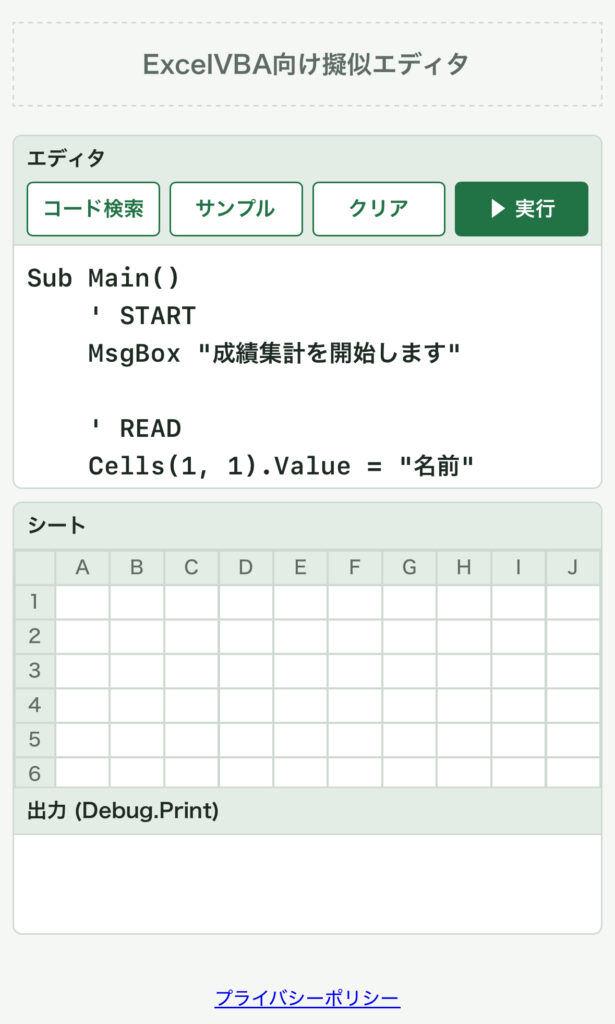
INITIAL
データの初期値を設定していきます。Dimは「変数の宣言」です。変数はデータを一時的に格納する箱のようなものです。変数には型を定義します。例えば、As Stringは文字、As Longは整数、As Doubleは小数、As Variantはなんでも入る型などです。
- results(1 To 5, 1 To 4):5人×4項目(名前・合計・平均・判定)を入れる2次元配列を定義しています。
- topName / topTotal:最高得点者の名前と点数を覚えておく箱です。最初は空と0にしておきます。
    ' INITIAL
    Dim results(1 To 5, 1 To 4) As Variant
    Dim topName As String
    Dim topTotal As Long
    Dim i As Long
    Dim studentName As String
    Dim total As Long
    Dim average As Double
    Dim judge As String
    topName = ""
    topTotal = 0
READ
データを読み込む段階ですが、ここではセルに値を代入としています。以降はこのセルに代入した値を用いて処理していきます。ExcelVBAでは、シートのセルをそのままデータの格納先とすることができます。セルは Cells(行, 列) で指定します。
    ' READ
    Cells(1, 1).Value = "名前"
    Cells(1, 2).Value = "科目1"
    Cells(1, 3).Value = "科目2"
    Cells(1, 4).Value = "科目3"
    Cells(2, 1).Value = "人物A"
    Cells(2, 2).Value = 80
    Cells(2, 3).Value = 70
    Cells(2, 4).Value = 65
    Cells(3, 1).Value = "人物B"
    Cells(3, 2).Value = 55
    ・
    ・
    ・
    Cells(5, 4).Value = 50
    Cells(6, 1).Value = "人物E"
    Cells(6, 2).Value = 70
    Cells(6, 3).Value = 75
    Cells(6, 4).Value = 68
MAIN
データ処理のメインとなる箇所です。For … Next は繰り返しの命令です。変数のiが1から5まで変化しながら、中の処理(今回は以降のCALCURATEとANALYSIS)を5回くり返します。
    ' MAIN
    For i = 1 To 5
    ・
    ・
    ・
    Next i
CALCULATE
次の判定処理(ANALYSIS)の素材を計算します。ここでは、3科目を足して合計を出し、3で割って平均を出します。iが1のとき2行目(人物A)、2のとき3行目(人物B)という具合です。(見出しの行(1行目)を飛ばすため、i + 1 行目を読んでいます。)
        ' CALCULATE
        studentName = Cells(i + 1, 1).Value
        total = Cells(i + 1, 2).Value
              + Cells(i + 1, 3).Value
              + Cells(i + 1, 4).Value
        average = total / 3
ANALYSIS
CALCURATEで計算した平均点について1人ずつ判定していきます。Ifは「もし〜なら」の命令です。ここでは、平均が60点以上なら「合格」、そうでなければ「不合格」としています。
        ' ANALYSIS
        If average >= 60 Then
            judge = "合格"
        Else
            judge = "不合格"
        End If
こちらは最高得点者を探す処理です。今までの最高点(topTotal)より合計が大きい人が出てきたら、記録を更新します。5人全員を見終わると、一番高い人が残ります。
        If total > topTotal Then
            topTotal = total
            topName = studentName
        End If
各々の計算結果を results に格納しておきます。
        results(i, 1) = studentName
        results(i, 2) = total
        results(i, 3) = average
        results(i, 4) = judge
WRITE
判定結果をシートのF列以降に書き出していきます。Round(値, 1) は、小数第1位までに丸める関数です。たとえば人物Aの平均71.666…は71.7になります。最高得点者は、少し離れた8行目に出力します。
    ' WRITE
    Cells(1, 6).Value = "名前"
    Cells(1, 7).Value = "合計"
    Cells(1, 8).Value = "平均"
    Cells(1, 9).Value = "判定"
    For i = 1 To 5
     Cells(i + 1, 6).Value = results(i, 1)
     Cells(i + 1, 7).Value = results(i, 2)
     Cells(i + 1, 8).Value
              = Round(results(i, 3), 1)
     Cells(i + 1, 9).Value = results(i, 4)
    Next i

    Cells(8, 6).Value = "最高得点者:"
    Cells(8, 7).Value = topName
    Cells(8, 8).Value = topTotal
END
最後にもう一度MsgBoxを出して、処理が終わったことを知らせます。ここでは、最高得点者の情報がわかるように出力しています。
    ' END
    MsgBox Cells(8, 6).Value
         & Cells(8, 7).Value
         & " (合計:"&Cells(8, 8).Value&"点)"